Skip to content
Login | Register
  • Why Evercore
  • Events
  • Students and Graduates
  • Experienced Hires
  • Help Center
  • Login | Register

Help Topics FAQ

  • Login Issues

    Login Issues
    • I cannot view the login page
    • I have forgotten my login details
    • My email has changed
    • I am stuck on the login page
    • What is my username?
    • Why is my login incorrect?
    • When I try to register I am told I have an existing account
  • Problems Saving Application Form

    Problems Saving Application Form
    • Cannot Edit Fields
    • My data is not updating
    • My information has disappeared
    • My information is not visible
  • Submission Issues

    Submission Issues
    • I haven't completed all the mandatory fields
    • I cannot access my saved/submitted application form
  • Amending Information

    Amending Information
    • How do I edit my personal details?
  • Online Assessments

    Online Assessments
    • Assessment not launching
  • Contact Us

    Contact Us

How to delete your cache in Google Chrome

Google Chrome 36.0

Open Google Chrome if it is not already open.

Click the Chrome menu  on the browser toolbar.

Select Settings.
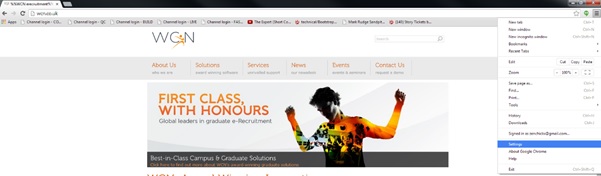
 

Click Show advanced settings.


In the Privacy section, click the Clear browsing data button. 

In the dialog that appears, select the checkboxes for the types of information that you want to remove. 

Use the menu at the top to select the amount of data that you want to delete. 

Select beginning of time from the drop down to delete everything. 

Click Clear browsing data.

View cookie / data protection and privacy policy

U.S. Investment Banking and Evercore ISI businesses are conducted through Evercore Group L.L.C., a member of FINRA and SIPC | Terms and Conditions | Important Regulatory Information | GDPR Privacy Notice | CCPA Privacy Notice

© Copyright 2026, Evercore. All rights reserved.